Build a HTML5 gravity-flipping platformer like “Gravity Duck” with Phaser 4 and TypeScript
Do you remember Gravity Duck? It is a Flash game by Woblyware, published on Armor Games, where a little duck has to collect a golden egg in each of its 40 levels.
The duck can’t jump: the only thing it can do, besides walking, is flip gravity and walk on the ceiling.
Gravity wells turn gravity by 90 degrees, so the duck also ends up walking on walls, while spikes, moving blocks, crawling enemies, cannons, homing turrets and pistons try to stop it.
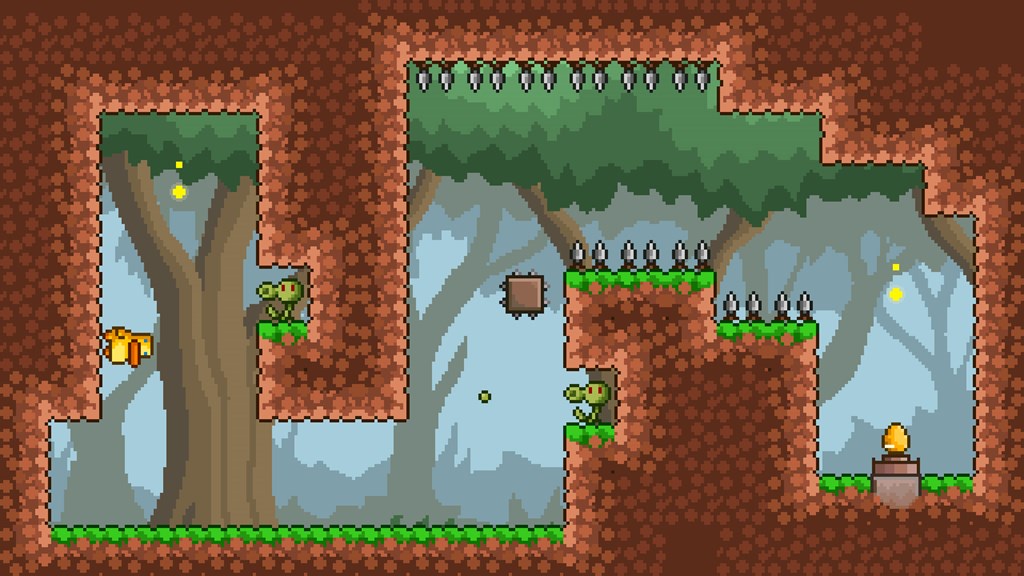
It is a perfect example of a game built around a single, simple idea. So easy that someone even made a version for Commodore 64!
Now it’s time to show you how to build a game like Gravity Duck with Phaser 4 and TypeScript, using Arcade Physics.
There is no graphics at all, and everything you see is drawn by the Arcade Physics and tilemap debug renderers, so we can focus on the code and on how the game works.
Every step is a complete, playable game, and from step 4 on each step starts directly from the level that introduces its new feature, so you don’t have to replay the same levels again and again.
Project setup
The project starts from the official Phaser Create Game App, turned into a single Vite multi-page project with one folder per step.
If you need more information about the Create Game App, I wrote a guide about it: Getting Started with Phaser 4: Vite + TypeScript Setup, using the official Create Game App.
This is the structure of the examples included in the project:
steps/
  01/            level creation and debug rendering
    index.html   page of the step
    main.ts      Phaser game config and start
    config.ts    game options
    levels.ts    level data
    scenes/      scenes
  02/ ... 11/
public/ shared static filesThe production Vite configuration finds every numbered folder by itself, so npm run build builds all the steps at once, with Phaser bundled in a single shared chunk:
const input = Object.fromEntries([
    ['index', resolve('steps/index.html')],
    ...readdirSync('steps').filter((name) => /^\d+$/.test(name)).map((name) => [name, resolve('steps', name, 'index.html')])
]);Each step has the same four files: main.ts creates the game, config.ts holds every option you may want to tweak, levels.ts holds the level data and scenes/Game.ts is the only scene.
To see exactly what changed between two steps, just run diff -ru steps/01 steps/02.
Step 1: level creation and debug rendering
The first step only builds the first level and draws it.
A level is a 20×15 array where each number is a tile code. The codes live in an enum, so the rest of the game never deals with magic numbers:
export enum Tile {
    Empty = 0,
    Wall = 1,
    PlayerStart = 2,
    Goal = 3
}The options file has a single value for now, the tile size, and main.ts sizes the canvas to the level: level1[0].length * GameOptions.tileSize wide and level1.length * GameOptions.tileSize high.
The interesting part is in create. The level array becomes the tilemap data, and the tilemap gets a layer created with an empty tileset list.
Such layer draws nothing by itself, but it knows which tiles are there, and that is all we need:
const mapConfig: Types.Tilemaps.TilemapConfig = {
    data: level1,
    tileWidth: size,
    tileHeight: size
};
const map: Tilemaps.Tilemap = this.make.tilemap(mapConfig);
const layer: Tilemaps.TilemapLayer = map.createLayer(0, []) as Tilemaps.TilemapLayer;Then we mark walls as colliding tiles and let the tilemap debug renderer draw them.
With tileColor set to null, non-colliding tiles are not drawn, colliding tiles are filled, and their faces next to empty space are outlined:
const styleConfig: Types.Tilemaps.StyleConfig = {
    tileColor: null,
    collidingTileColor: new Display.Color(40, 50, 120),
    faceColor: new Display.Color(90, 120, 255)
};
layer.setCollision(Tile.Wall);
layer.renderDebug(this.add.graphics(), styleConfig);This is how every level will be drawn until the end of the tutorial.
Marking walls as colliding now also pays off in the next step, because Arcade Physics will use the same information to make the player collide with the level.
Here is the result:
This is how first level looks like.
Step 2: player and basic movement
Step 2 adds the player, gravity and keyboard movement. The player is not a sprite but a bare Arcade Physics body, which the physics debug renderer draws as a rectangle.
What’s new compared to step 1:
main.tsenables Arcade Physics with debug drawing on and a world gravity taken from the options.config.tsgets the player hitbox size, acceleration, drag, maximum speed, gravity, maximum falling speed and the key bindings.Game.tscreates the player body, makes it collide with the tilemap layer and reads the keyboard.
All movement values are in the options file, so you can change how the game feels without touching the code:
player: {
    width: 24,
    height: 32,
    acceleration: 1800,
    drag: 900,
    maxSpeed: 180,
    gravity: 1800,
    maxFallSpeed: 300
},
keys: {
    left: ['LEFT', 'A'],
    right: ['RIGHT', 'D']
}The player body is placed in the middle of the start tile, standing on its bottom edge.
One collider against the layer is enough to make it walk on the walls we marked as colliding in step 1:
const start: Tilemaps.Tile = layer.findByIndex(Tile.PlayerStart);
const playerX: number = start.pixelX + (size - options.width) / 2;
const playerY: number = start.pixelY + size - options.height;
this.player = this.physics.add.body(playerX, playerY, options.width, options.height);
this.player.setMaxVelocity(options.maxSpeed, options.maxFallSpeed);
this.player.setDrag(options.drag, 0);
this.physics.add.collider(this.player, layer);We only use built-in Arcade features here.
setMaxVelocity caps both the walking speed and the falling speed.
setDrag(options.drag, 0) slows the player down horizontally only, and Arcade applies drag only on an axis with no acceleration, so it works exactly when no direction key is held.
Each action can be bound to more than one key, so the player moves with both arrows and A/D. Keys are stored per action, and two small helpers read them:
private held (action: Action): boolean {
    return this.keys[action].some((key: Input.Keyboard.Key) => key.isDown);
}

private axis (negative: Action, positive: Action): number {
    return this.held(negative) === this.held(positive) ? 0 : this.held(positive) ? 1 : -1;
}axis returns 0 both when no key is held and when both directions are held, so pressing left and right together does nothing.
The whole update is a single line:
this.player.setAccelerationX(this.axis('left', 'right') * GameOptions.player.acceleration);The goal is added as a yellow static body, but it does nothing yet.
Here is the result:
Move the “duck” with A/D keys, or LEFT/RIGHT arrows.
Step 3: gravity flip and level progression
This is where the game becomes a game: the player can flip gravity to walk on the ceiling, and reaching the goal moves on to the next level. The step starts from level 2, the first one that needs a flip.
What’s new compared to step 2:
levels.tsexports an array of levels instead of a single one, and adds a goal hanging from the ceiling (GoalCeiling = 4).config.tsgetsstartLeveland aflipaction bound to X and Space.main.tsremoves world gravity: the player body carries its own, so it can be flipped.Game.tsreceives the level number ininit, flips gravity, collects the goal and restarts the scene with the next level.
The scene now knows which level to build. init reads it from the scene data, and falls back to the start level from the options:
init (data: { level?: number }): void {
    this.level = data.level ?? GameOptions.startLevel;
}Gravity moves from the world to the player body, with this.player.setGravityY(options.gravity).
Its direction is just the sign of the body gravity, and the player is grounded when it is blocked on the side gravity points to:
private get gravity (): number {
    return Math.sign(this.player.gravity.y);
}

private get grounded (): boolean {
    return this.gravity === 1 ? this.player.blocked.down : this.player.blocked.up;
}Flipping only needs a fresh key press while standing on a surface, so you can’t flip again in mid-air.
pressed uses JustDown on every key bound to the action, so no key is left with a stale “just pressed” flag:
if (this.pressed('flip') && this.grounded) {
    this.player.gravity.y *= -1;
}There are now two kinds of goals, so a small lookup table says which gravity each one needs. The goal hitbox is half a tile, resting on the floor or hanging from the ceiling, and it is collected only when the player stands with the same gravity:
const GOAL_GRAVITY: Record<number, number> = {
    [Tile.Goal]: 1,
    [Tile.GoalCeiling]: -1
};

const goal: Tilemaps.Tile = layer.findTile((tile: Tilemaps.Tile) => tile.index in GOAL_GRAVITY)!;
const goalGravity: number = GOAL_GRAVITY[goal.index];
const goalY: number = goal.pixelY + (goalGravity === 1 ? size / 2 : 0);
const goalBody: Physics.Arcade.StaticBody = this.physics.add.staticBody(goal.pixelX, goalY, size, size / 2);
this.physics.add.overlap(this.player, goalBody, () => {
    if (this.grounded && this.gravity === goalGravity) {
        this.scene.restart({ level: this.level % levels.length + 1 });
    }
});There is one last detail.
If you keep a key held while completing a level, the browser keeps sending auto-repeat events, and the next level would take them as a new press.
We ignore them, so every level needs a fresh press:
// a key still held from the previous level only sends auto-repeat events
// ignore them, so every level needs a fresh press
key.on('down', (_key: Input.Keyboard.Key, event: KeyboardEvent) => {
    if (event.repeat) {
        key.reset();
    }
});This is the result:
Move the “duck” with A/D keys, or LEFT/RIGHT arrows. SPACE or X flips the gravity.
Step 4: gravity wells and wall gravity
Step 4 is the biggest change to the core of the game.
Gravity is no longer just up or down, but it can point in any of the four directions.
Gravity wells turn it by 90° when the player falls into them, and the player then walks on the walls. The step starts from level 3.
What’s new compared to step 3:
levels.tsadds goals on the left and right walls, plus clockwise and counterclockwise wells.config.tsgetswellSize,wellSpeedTransferand theupanddownactions, used to walk along walls.Game.tsstores gravity as a unit vector, adds the wells and asetGravitymethod that turns the player hitbox.
Gravity is now a Vector2, and the goal table stores a direction vector for each kind of goal:
const GOAL_GRAVITY: Record<number, [number, number]> = {
    [Tile.Goal]: [0, 1],
    [Tile.GoalCeiling]: [0, -1],
    [Tile.GoalLeftWall]: [-1, 0],
    [Tile.GoalRightWall]: [1, 0]
};Every gravity change goes through setGravity.
When gravity points left or right, the player stands on a wall, so the hitbox turns: it becomes wider than tall, keeping its center.
Speed limits and drag swap axes too, because the walking axis is now vertical:
private setGravity (x: number, y: number): void {
    const options: Options['player'] = GameOptions.player;
    const body: Physics.Arcade.Body = this.player;
    const vertical: boolean = y !== 0;
    const width: number = vertical ? options.width : options.height;
    const height: number = vertical ? options.height : options.width;
    const centerX: number = body.center.x;
    const centerY: number = body.center.y;

    this.gravity.set(x, y);
    body.setGravity(x * options.gravity, y * options.gravity);
    body.setSize(width, height).position.set(centerX - width / 2, centerY - height / 2);
    body.updateCenter();
    const maxX: number = vertical ? options.maxSpeed : options.maxFallSpeed;
    const maxY: number = vertical ? options.maxFallSpeed : options.maxSpeed;
    body.setMaxVelocity(maxX, maxY);
    body.setDrag(vertical ? options.drag : 0, vertical ? 0 : options.drag);
}With this method, flipping becomes this.setGravity(-this.gravity.x, -this.gravity.y), and grounded checks the blocked side in all four directions.
Walking uses left/right on floor and ceiling, and up/down on walls:
const vertical: boolean = this.gravity.y !== 0;
const direction: number = vertical ? this.axis('left', 'right') : this.axis('up', 'down');
this.player.setAcceleration(vertical ? direction * acceleration : 0, vertical ? 0 : direction * acceleration);Wells are small static bodies centered in their tiles, cyan for clockwise wells and orange for counterclockwise wells.
One overlap handles each spin direction:
[true, false].forEach((clockwise: boolean) => {
    const index: Tile = clockwise ? Tile.WellClockwise : Tile.WellCounterclockwise;
    const tiles: Tilemaps.Tile[] = layer.filterTiles((tile: Tilemaps.Tile) => tile.index === index);
    const offset: number = (size - wellSize) / 2;
    const wells: Physics.Arcade.StaticBody[] = tiles.map((tile: Tilemaps.Tile) => {
        const wellX: number = tile.pixelX + offset;
        const wellY: number = tile.pixelY + offset;
        const well: Physics.Arcade.StaticBody = this.physics.add.staticBody(wellX, wellY, wellSize, wellSize);
        well.debugBodyColor = clockwise ? 0x00ffff : 0xff8800;
        return well;
    });
    const touchWell: Types.Physics.Arcade.ArcadePhysicsCallback = (_player: unknown, well: unknown) => {
        this.turnGravity(well as Physics.Arcade.StaticBody, clockwise);
    };
    this.physics.add.overlap(this.player, wells, touchWell);
});turnGravity rotates the gravity vector by a quarter turn.
Since y points down on screen, a clockwise turn maps (x, y) to (-y, x).
The player is lined up with the well, and part of its falling speed, set by wellSpeedTransfer, carries on in the new direction.
A well can’t turn gravity twice in a row: it is stored in usedWell and becomes active again once the player lands.
if (clockwise) {
    this.setGravity(-y, x);
}
else {
    this.setGravity(y, -x);
}
body.velocity.set(this.gravity.x * speed, this.gravity.y * speed);Here is the result:
Move the “duck” with WASD or ARROW keys. SPACE or X flips the gravity.
Step 5: spikes and death
Until now the player could not die.
Step 5 adds spikes on all four sides of a tile, and makes leaving the screen deadly too.
Dying simply restarts the current level. The step starts from level 4.
What’s new compared to step 4:
levels.tsadds four spike tiles, one for each side of the tile they stick to.config.tsgetshazardColorand the size of the spike hitboxes,sideLengthandsideDepth.Game.tsadds a list of hazards, asideBodyhelper and adiemethod.
Like goals and wells, each spike tile maps to a unit vector, here the side of the tile it sticks to:
const SPIKE_SIDE: Record<number, [number, number]> = {
    [Tile.SpikesFloor]: [0, 1],
    [Tile.SpikesLeftWall]: [-1, 0],
    [Tile.SpikesCeiling]: [0, -1],
    [Tile.SpikesRightWall]: [1, 0]
};The spike hitbox is smaller than the tile, so touching its edge is forgiven.
sideBody builds a hitbox sideLength long and sideDepth deep, stuck to the given side and centered along it.
It can create a static or a moving body, because in step 7 crawlers will use it too:
private sideBody (tile: Tilemaps.Tile, side: [number, number], isStatic: boolean): AnyBody {
    const size: number = GameOptions.tileSize;
    const length: number = GameOptions.sideLength;
    const depth: number = GameOptions.sideDepth;
    const x: number = tile.pixelX + (side[0] ? (side[0] > 0 ? size - depth : 0) : (size - length) / 2);
    const y: number = tile.pixelY + (side[1] ? (side[1] > 0 ? size - depth : 0) : (size - length) / 2);
    const width: number = side[0] ? depth : length;
    const height: number = side[1] ? depth : length;
    if (isStatic) {
        return this.physics.add.staticBody(x, y, width, height);
    }
    return this.physics.add.body(x, y, width, height);
}Every deadly thing goes into a single hazards array, painted red and handled by one overlap.
This array is the extension point for the next steps: each new enemy just pushes its bodies into it.
const hazards: AnyBody[] = [];

const spikeTiles: Tilemaps.Tile[] = layer.filterTiles((tile: Tilemaps.Tile) => tile.index in SPIKE_SIDE);
spikeTiles.forEach((tile: Tilemaps.Tile) => {
    hazards.push(this.sideBody(tile, SPIKE_SIDE[tile.index], true));
});

hazards.forEach((hazard: AnyBody) => {
    hazard.debugBodyColor = GameOptions.hazardColor;
});
this.physics.add.overlap(this.player, hazards, () => this.die());Finally, update kills the player when its center leaves the world bounds, which happens when you flip gravity over a hole:
if (!this.physics.world.bounds.contains(this.player.center.x, this.player.center.y)) {
    this.die();
}Here is the result:
Move the “duck” with A/D keys, or LEFT/RIGHT arrows. SPACE or X flips the gravity.
Step 6: moving blocks
Step 6 adds the first moving hazard: full-tile blocks that travel in a straight line and bounce back when they hit a wall.
The step starts from level 9, where blocks first appear; levels 5 to 8 only combine what we already have.
What’s new compared to step 5:
levels.tsadds levels 5 to 9 and four block tiles, one for each starting direction.config.tsgetsblockSpeed.Game.tscreates the blocks and pushes them into the hazards list.
The starting direction of each block is, once again, a unit vector in a lookup table:
const BLOCK_DIRECTION: Record<number, [number, number]> = {
    [Tile.BlockUp]: [0, -1],
    [Tile.BlockRight]: [1, 0],
    [Tile.BlockDown]: [0, 1],
    [Tile.BlockLeft]: [-1, 0]
};This is where Arcade Physics does all the work for us.
Each block is a moving body with a constant velocity and a bounce of 1, so when it collides with the layer it reverses direction without losing speed.
There is no world gravity, so blocks keep moving in a straight line.
No code in update is needed:
const blockTiles: Tilemaps.Tile[] = layer.filterTiles((tile: Tilemaps.Tile) => tile.index in BLOCK_DIRECTION);
const blocks: Physics.Arcade.Body[] = blockTiles.map((tile: Tilemaps.Tile) => {
    const direction: [number, number] = BLOCK_DIRECTION[tile.index];
    const speed: number = GameOptions.blockSpeed;
    const block: Physics.Arcade.Body = this.physics.add.body(tile.pixelX, tile.pixelY, size, size);
    block.setVelocity(direction[0] * speed, direction[1] * speed);
    block.setBounce(1);
    return block;
});
this.physics.add.collider(blocks, layer);
hazards.push(...blocks);The last line is all it takes to make blocks deadly, thanks to the hazards list built in step 5.
Here is the result:
Move the “duck” with A/D keys, or LEFT/RIGHT arrows. SPACE or X flips the gravity.
Step 7: crawlers
Crawlers are enemies that crawl along one side of the walls and turn back when they reach a wall or the end of the surface they walk on. Unlike blocks, they need a bit of logic in update.
The step starts from level 13.
What’s new compared to step 6:
levels.tsadds levels 10 to 13 and four crawler tiles, one for each side.config.tsgetscrawlerSpeed.Game.tsadds aCrawlerinterface, keeps a reference to the layer and moves crawlers with a newcrawlmethod.
Crawler hitboxes have the same shape as spikes, so they reuse the sideBody helper from step 5, this time asking for a moving body.
Each crawler stores its body, the side it sticks to and its direction along the crawling axis:
interface Crawler {
    body: Physics.Arcade.Body;
    side: PhaserMath.Vector2;
    direction: number;
}

const crawlerTiles: Tilemaps.Tile[] = layer.filterTiles((tile: Tilemaps.Tile) => tile.index in CRAWLER_SIDE);
this.crawlers = crawlerTiles.map((tile: Tilemaps.Tile) => {
    const side: [number, number] = CRAWLER_SIDE[tile.index];
    const crawler: Crawler = {
        body: this.sideBody(tile, side, false) as Physics.Arcade.Body,
        side: new PhaserMath.Vector2(...side),
        direction: 1
    };
    hazards.push(crawler.body);
    return crawler;
});At every frame, crawl looks at two tiles in front of the crawler: the tile ahead, and the tile it would crawl onto.
If the tile ahead is a wall, or there is no wall to crawl onto, the crawler turns back.
Then its velocity is set along the crawling axis, which is perpendicular to the side it sticks to:
private crawl (crawler: Crawler): void {
    const size: number = GameOptions.tileSize;
    const depth: number = GameOptions.sideDepth;
    // crawling axis: perpendicular to the side the crawler sticks to
    const axisX: number = crawler.side.y ? crawler.direction : 0;
    const axisY: number = crawler.side.x ? crawler.direction : 0;
    // centre of the tile-sized area the crawler moves in
    const centerX: number = crawler.body.center.x - crawler.side.x * (size - depth) / 2;
    const centerY: number = crawler.body.center.y - crawler.side.y * (size - depth) / 2;
    // just past the front edge of that area, and the tile it would crawl onto
    const frontX: number = centerX + axisX * (size / 2 + 0.5);
    const frontY: number = centerY + axisY * (size / 2 + 0.5);
    const ahead: Tilemaps.Tile | null = this.layer.getTileAtWorldXY(frontX, frontY);
    const groundX: number = frontX + crawler.side.x * size;
    const groundY: number = frontY + crawler.side.y * size;
    const ground: Tilemaps.Tile | null = this.layer.getTileAtWorldXY(groundX, groundY);

    if (ahead?.index === Tile.Wall || ground?.index !== Tile.Wall) {
        crawler.direction *= -1;
    }
    const speed: number = GameOptions.crawlerSpeed;
    const velocityX: number = crawler.side.y ? crawler.direction * speed : 0;
    const velocityY: number = crawler.side.x ? crawler.direction * speed : 0;
    crawler.body.setVelocity(velocityX, velocityY);
}The extra half pixel in the front point matters: without it, a crawler moving left would check the tile it is already on.
update calls crawl for each crawler:
this.crawlers.forEach((crawler: Crawler) => this.crawl(crawler));Here is the result:
Move the “duck” with A/D keys, or LEFT/RIGHT arrows. SPACE or X flips the gravity.
Step 8: cannons
Step 8 adds cannons, which fire straight bullets left or right at a fixed rhythm.
Bullets kill the player and disappear when they hit a wall. The step starts from level 18.
What’s new compared to step 7:
levels.tsadds levels 14 to 18 and four cannon tiles: firing right or left, each with a normal or an early first shot.config.tsgets acannongroup of options. Since it uses tile codes as keys, it now importsTilefromlevels.ts, and times are in milliseconds.Game.tsadds a bullet group, one timer event per cannon and ashootmethod.
The early variants let level designers make two cannons fire out of sync.
Instead of a separate flag, the delay before the first shot is a table in the options, keyed by tile code:
cannon: {
    interval: 1667,
    firstShot: {
        [Tile.CannonRight]: 1667,
        [Tile.CannonRightEarly]: 833,
        [Tile.CannonLeft]: 1667,
        [Tile.CannonLeftEarly]: 567
    },
    bulletSpeed: 240,
    bulletSize: 8,
    muzzle: 10
},All bullets live in one Arcade group, so a single collider removes them on walls and a single overlap kills the player.
Each cannon is shown as a grey static body that does not hurt, and gets a looping timer event.
startAt moves the timer forward, so the first shot comes after firstShot milliseconds and the next ones every interval milliseconds:
const destroyBullet: Types.Physics.Arcade.ArcadePhysicsCallback = (bullet: unknown) => {
    (bullet as GameObjects.Zone).destroy();
};
this.bullets = this.physics.add.group();
this.physics.add.collider(this.bullets, layer, destroyBullet);
this.physics.add.overlap(this.player, this.bullets, () => this.die());
const cannonTiles: Tilemaps.Tile[] = layer.filterTiles((tile: Tilemaps.Tile) => tile.index in CANNON_DIRECTION);
cannonTiles.forEach((tile: Tilemaps.Tile) => {
    const interval: number = GameOptions.cannon.interval;
    const cannon: Physics.Arcade.StaticBody = this.physics.add.staticBody(tile.pixelX, tile.pixelY, size, size);
    cannon.debugBodyColor = 0x888888;
    this.time.addEvent({
        delay: interval,
        startAt: interval - GameOptions.cannon.firstShot[tile.index],
        loop: true,
        callback: () => this.shoot(tile, CANNON_DIRECTION[tile.index])
    });
});A bullet is an invisible Zone game object: adding it to the physics group gives it a body, which the debug renderer draws.
It appears muzzle pixels from the cannon center and moves horizontally:
private shoot (tile: Tilemaps.Tile, direction: number): void {
    const options: Options['cannon'] = GameOptions.cannon;
    const bulletSize: number = options.bulletSize;
    const bulletX: number = tile.getCenterX() + direction * options.muzzle;
    const bullet: GameObjects.Zone = this.add.zone(bulletX, tile.getCenterY(), bulletSize, bulletSize);
    this.bullets.add(bullet);
    const body: Physics.Arcade.Body = bullet.body as Physics.Arcade.Body;
    body.setVelocityX(direction * options.bulletSpeed);
    body.debugBodyColor = GameOptions.hazardColor;
}Timer events belong to the scene clock, so they are cleared automatically when the scene restarts after a death or a completed level.
Here is the result:
Move the “duck” with A/D keys, or LEFT/RIGHT arrows. SPACE or X flips the gravity.
Step 9: turrets and homing bullets
Turrets fire bullets aimed at the player, and those bullets keep turning towards the player while they fly, a few degrees at a time.
They are fast but turn slowly, so you can dodge them with a well-timed flip. The step starts from level 23.
What’s new compared to step 8:
levels.tsadds levels 19 to 23 and two turret tiles, with a normal or an early first shot.config.tsgets aturretgroup of options, with its ownfirstShottable,steerIntervalandturn.Game.tsadds a second bullet group, theshootHomingandsteerHomingBulletsmethods and one steering timer.
Turrets are built just like cannons, with a green box and a looping timer each.
This time there is no direction table: the keys of the firstShot table are enough to find turret tiles.
Homing bullets get their own group, reusing the destroyBullet callback from step 8, and one more timer steers all of them every steerInterval milliseconds:
this.homingBullets = this.physics.add.group();
this.physics.add.collider(this.homingBullets, layer, destroyBullet);
this.physics.add.overlap(this.player, this.homingBullets, () => this.die());
const firstShot: Record<number, number> = GameOptions.turret.firstShot;
const turretTiles: Tilemaps.Tile[] = layer.filterTiles((tile: Tilemaps.Tile) => tile.index in firstShot);
turretTiles.forEach((tile: Tilemaps.Tile) => {
    const interval: number = GameOptions.turret.interval;
    const turret: Physics.Arcade.StaticBody = this.physics.add.staticBody(tile.pixelX, tile.pixelY, size, size);
    turret.debugBodyColor = 0x00aa88;
    this.time.addEvent({
        delay: interval,
        startAt: interval - firstShot[tile.index],
        loop: true,
        callback: () => this.shootHoming(tile)
    });
});
const steering: Types.Time.TimerEventConfig = {
    delay: GameOptions.turret.steerInterval,
    loop: true,
    callback: () => this.steerHomingBullets()
};
this.time.addEvent(steering);A homing bullet starts from the turret center, aimed straight at the player. velocityFromRotation turns an angle and a speed into a velocity vector, writing it directly into the body:
const target: PhaserMath.Vector2 = this.player.center;
const angle: number = PhaserMath.Angle.Between(bullet.x, bullet.y, target.x, target.y);
this.physics.velocityFromRotation(angle, options.bulletSpeed, body.velocity);Steering uses Angle.RotateTo, which moves the current angle towards the target angle by at most a given step, always taking the shortest way round.
The speed stays the same, only the direction changes:
private steerHomingBullets (): void {
    const options: Options['turret'] = GameOptions.turret;
    const maxTurn: number = PhaserMath.DegToRad(options.turn);
    const target: PhaserMath.Vector2 = this.player.center;
    this.homingBullets.getChildren().forEach((child: GameObjects.GameObject) => {
        const bullet: GameObjects.Zone = child as GameObjects.Zone;
        const body: Physics.Arcade.Body = bullet.body as Physics.Arcade.Body;
        const targetAngle: number = PhaserMath.Angle.Between(bullet.x, bullet.y, target.x, target.y);
        const angle: number = PhaserMath.Angle.RotateTo(body.velocity.angle(), targetAngle, maxTurn);
        this.physics.velocityFromRotation(angle, options.bulletSpeed, body.velocity);
    });
}With turn and steerInterval in the options, you can make bullets as smart or as dumb as you like.
Here is the result:
Move the “duck” with A/D keys, or LEFT/RIGHT arrows. SPACE or X flips the gravity.
Step 10: pistons
Pistons are the last hazard. A piston shoots out of its tile, up to two tiles long, then pulls back step by step, waits, and shoots out again. The step starts from level 28.
What’s new compared to step 9:
levels.tsadds levels 24 to 28 and eight piston tiles: four directions, each in a normal and a late version.config.tsgets apistongroup of options describing the cycle.Game.tsadds aPistoninterface and anupdatePistonmethod that sets each piston length from the clock.
With the default options, a cycle lasts 733 ms.
The piston stays fully out at 64 pixels for 67 ms, then pulls back 8 pixels every 67 ms until it is 24 pixels long, and waits there until the cycle ends:
piston: {
    cycle: 733,
    hold: 67,
    step: 8,
    stepTime: 67,
    extended: 64,
    retracted: 24,
    lateOffset: 333
},This time the lookup table holds two values for each tile: the direction the piston extends towards, and whether it is late.
Late pistons start part way through their cycle, so neighbouring pistons can move out of step:
const PISTON: Record<number, { direction: [number, number], late: boolean }> = {
    [Tile.PistonDown]: { direction: [0, 1], late: false },
    [Tile.PistonLeft]: { direction: [-1, 0], late: false },
    // ...
    [Tile.PistonRightLate]: { direction: [1, 0], late: true }
};Pistons are moving bodies, because their size changes, but with moves = false: the physics step does not move them, our code does.
Each piston stores an offset that, added to the scene clock, gives the time within its cycle. It is set so that the cycle starts when the level starts:
const piston: Piston = {
    body: this.physics.add.body(tile.pixelX, tile.pixelY, size, size),
    tile: tile,
    direction: new PhaserMath.Vector2(...PISTON[tile.index].direction),
    offset: (late ? GameOptions.piston.lateOffset : 0) - this.time.now
};
piston.body.moves = false;
hazards.push(piston.body);updatePiston turns the time within the cycle into a length, then resizes the body.
When the piston extends left or up, the body grows towards negative coordinates, so its position moves back by the extra length:
private updatePiston (piston: Piston): void {
    const options: Options['piston'] = GameOptions.piston;
    const size: number = GameOptions.tileSize;
    const time: number = (this.time.now + piston.offset) % options.cycle;
    const steps: number = time < options.hold ? 0 : Math.ceil((time - options.hold) / options.stepTime);
    const length: number = Math.max(options.retracted, options.extended - options.step * steps);
    const x: number = piston.tile.pixelX + (piston.direction.x < 0 ? size - length : 0);
    const y: number = piston.tile.pixelY + (piston.direction.y < 0 ? size - length : 0);

    const width: number = piston.direction.x ? length : size;
    const height: number = piston.direction.y ? length : size;
    piston.body.setSize(width, height);
    piston.body.position.set(x, y);
    piston.body.updateCenter();
}Computing the length from the clock, instead of counting frames, keeps pistons in sync whatever the frame rate. update calls it for every piston, right after moving the crawlers.
Here is the result:
Move the “duck” with A/D keys, or LEFT/RIGHT arrows. SPACE or X flips the gravity.
Step 11: all levels and game completion
The last step adds no new hazard: every feature is already in place. It adds the remaining levels, up to 40, and a proper ending. Since this is the complete game, it starts again from level 1.
What’s new compared to step 10:
levels.tsadds levels 29 to 40.config.tssetsstartLevelback to 1.Game.tsstops the game after the last goal instead of looping back to the first level.
Until step 10, collecting the last goal restarted from level 1, thanks to this.level % levels.length + 1.
Now the goal overlap checks whether this was the last level:
if (this.level === levels.length) {
    this.gameCompleted();
}
else {
    this.scene.restart({ level: this.level + 1 });
}gameCompleted pauses the physics world, so nothing moves and nothing can kill the player any more, and writes a message in the middle of the screen. It is the only text object of the whole game:
private gameCompleted (): void {
    this.physics.pause();
    const style: Types.GameObjects.Text.TextStyle = { fontSize: 32, color: '#ffffff' };
    const centerX: number = this.scale.width / 2;
    const centerY: number = this.scale.height / 2;
    this.add.text(centerX, centerY, 'GAME COMPLETED', style).setOrigin(0.5);
}The game is now complete and playable from start to end, with about 640 lines of game code, all of it in a single scene.
Enjoy:
Move the “duck” with A/D keys, or LEFT/RIGHT arrows. SPACE or X flips the gravity.
What’s next
Eleven steps took us from an array of numbers to a complete 40-level platformer, using only Arcade Physics bodies, a tilemap layer without tiles and the debug renderers.
Every hazard after step 5 was added by pushing its bodies into the same hazards list, and every movement value lives in the options file, ready to be tuned.
The game still has no graphics, sounds, menus or level selection: those are the topics of the next tutorials.
Meanwhile, you can play with the options and change how the whole game feels without touching a line of code.
Download the commented source code of all eleven steps, along with the complete Vite project. Don’t know what I am talking about? There’s a free minibook to get you started, and a guide to Create Phaser Game app.